Getting Started with One UI on Your Galaxy Smartphone
Learn the basics of One UI and how to customize your Galaxy smartphone for a more intuitive experience.
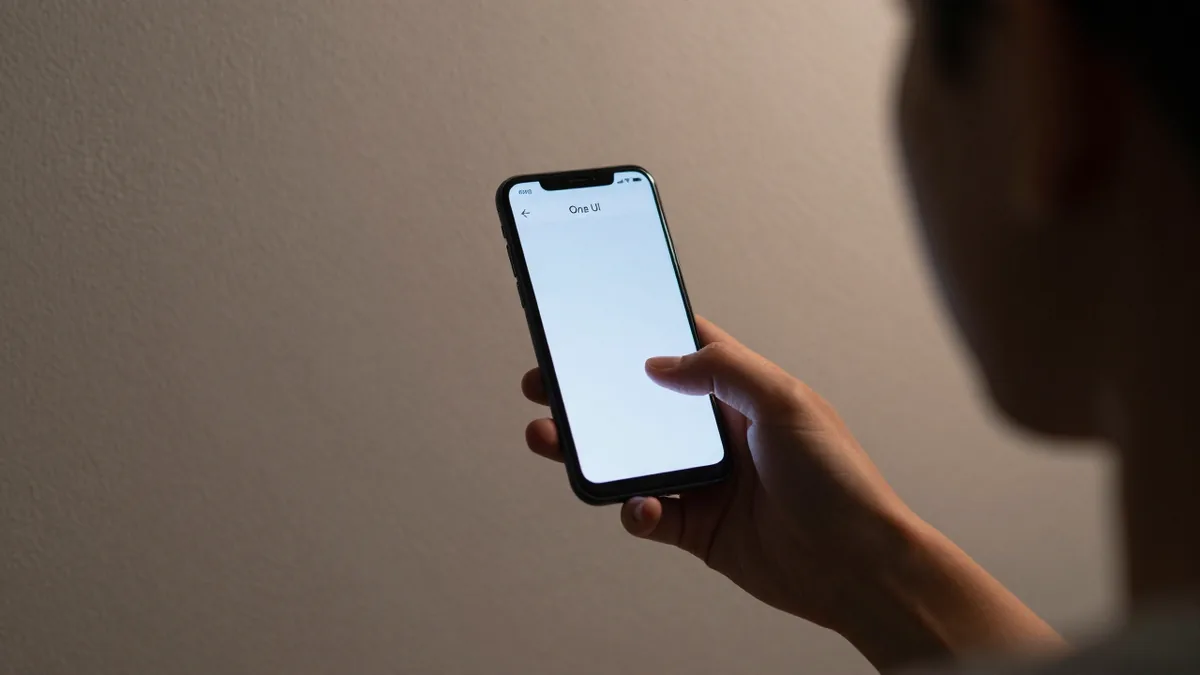
Getting familiar with a new smartphone can be a daunting task, especially when it comes to navigating the various tools and options offered by the operating system. Samsung's One UI is designed to make your smartphone experience more fluid and intuitive, with a range of customization options to help you get started. ## Customizing Your Home Screen The home screen is the first thing you'll see when you unlock your phone. By long-pressing an empty area of the screen or pinching it, you can access the settings to modify the icon grid, its size, and more. You can also disable Google Discover, a news feed that appears on the left side of your home screen, and hide apps that you don't use regularly but don't want to uninstall. ## Managing Your Apps Drawer The apps drawer is located by swiping up from the home screen and contains all the apps you have installed. In the top-right corner, you'll find three dots that take you to the settings, where you can organize your apps alphabetically or in a custom order. ## Enabling Gesture Navigation By default, the system includes three traditional buttons at the bottom of the screen. However, you can change the navigation to gestures to make better use of the screen space. To do this, go to Settings - Display - Navigation bar and select the Gesture navigation option. ## Customizing Your Lock Screen The lock screen is not just a static image; you can add widgets such as the weather or your reminders, and even change the two bottom shortcuts to tools or your most-used apps. Simply long-press the lock screen, unlock the device, and you'll see the various customization options. ## Integrating Your Samsung Account Creating and logging in with a Samsung account is a crucial step to access additional services within the ecosystem. This linking allows you to back up information and device configuration in Samsung Cloud, activate security tools like Find My Device, and share information with family members. ## Personalizing Your Notification Style One UI offers various options to personalize your notifications, such as selecting the Summary or Detailed style, and effects of illumination on the screen's edges, which make notifications look specific colors depending on the app. To configure this, go to Settings - Notifications - Notification style. By dedicating a few minutes to exploring these options during the initial setup, you can help the interface adapt better to your usage habits. One UI offers a range of customization tools, so familiarizing yourself with them is the first step to achieving a more personalized experience.